Score it, stream it, share it from your own ground.
Cricket Ground Studio turns your phone or laptop into a small TV studio. Score every ball, show the live score on your video and go live on YouTube or Facebook with your own stream key. Use spare phones as extra cameras. Your matches stay on your device.
Cricket Ground Studio is in testing. The Android phone app and the Windows laptop studio are test builds, and the iPhone, iPad and Mac app is in development.
Live in three steps
No extra software and no sign-in. Everything happens in the app.
1
Add your stream key.
Open Settings and paste your YouTube or Facebook stream key, or any rtmp:// or rtmps:// address. Pick 480p, 720p or 1080p to suit your internet.
2
Set up your cameras.
Film with the phone itself, or turn spare phones into cameras: on each one, tap "Use this phone as a camera" on the opening screen. They connect over Wi-Fi, a hotspot, Wi-Fi Direct or USB.
3
Score and go live.
Tap Go live and score each ball. The score on the video updates by itself, with your ground name, tournament and sponsors.
Going live needs an internet connection: mobile data, a hotspot or Wi-Fi. Everything else works at the ground without it.
Everything a match day needs
Ball-by-ball scoring that keeps up
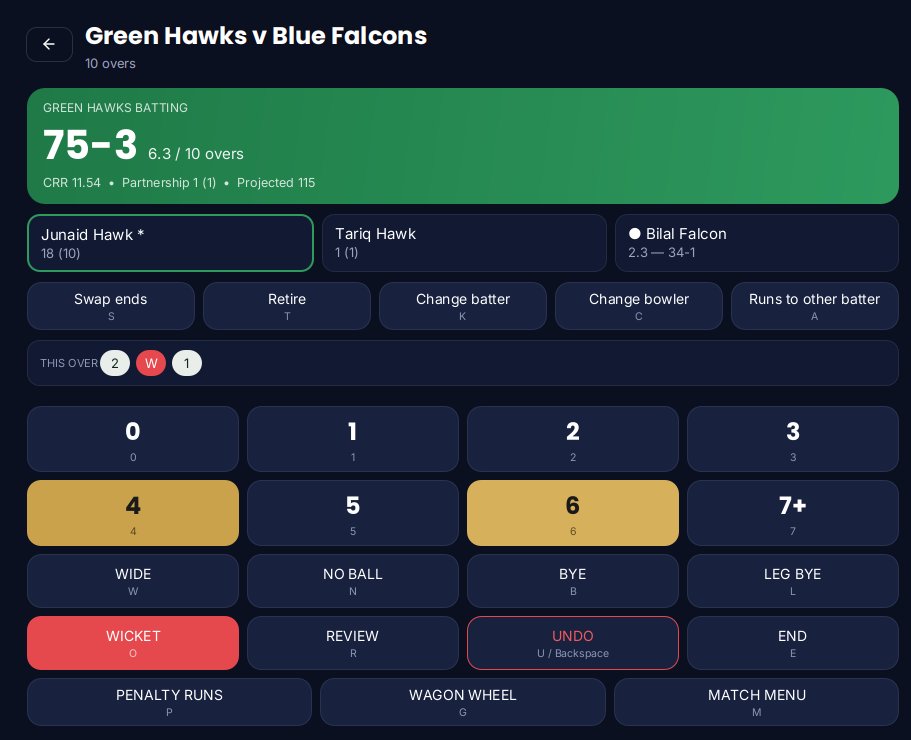
Big keys for runs, extras and wickets, so the scorer never falls behind. Made a mistake? Undo it.
Wides, no balls, byes, leg byes and penalty runs
Bowled, caught, lbw, run out, stumped, hit wicket, retired and more
Undo, swap ends, change batter or bowler
Wagon wheel and a full scorecard you can share as text
Scoring on the Windows laptop studio (demo teams).
A live stream that looks like TV
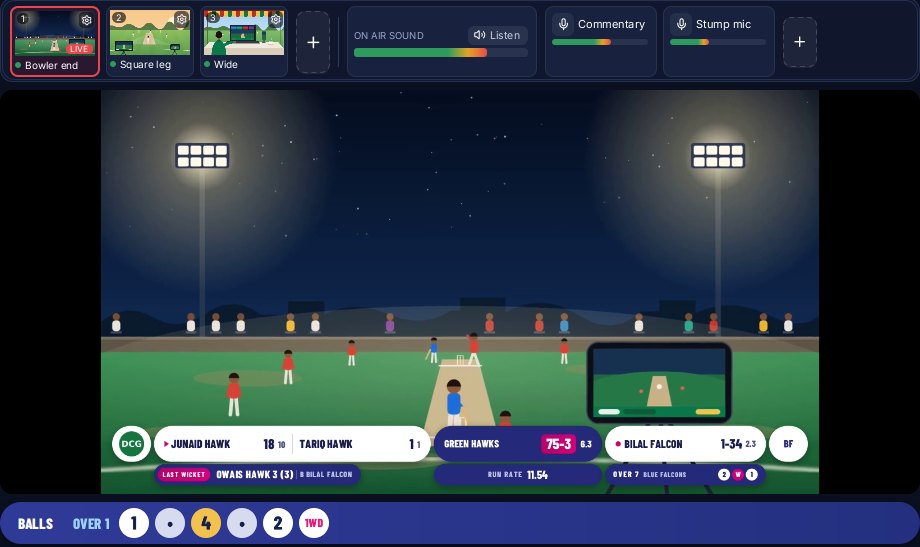
The score band sits on your video and updates with every ball. Stream straight from the app to YouTube, Facebook or your own RTMP server. You don't need OBS or a separate computer.
50 score-overlay looks in the phone app
Sponsor cards and your tournament name on screen
480p, 720p or 1080p from the phone
Record on the phone while you are live
The Windows studio's control room with the score band on the live picture (demo match). The picture is one of our illustrations, played as a test camera.
More angles from phones you already have
Put an old phone behind the bowler's arm and another at square leg. The control phone or laptop switches between them.
Phones as cameras over Wi-Fi, a hotspot, Wi-Fi Direct or USB
RTSP and ONVIF IP cameras, and DroidCam
On Windows: USB and HDMI cameras too
Replays, slow motion and highlights
Show the big moment again while you are still live, slow it down, then cut highlights after the match.
Instant replay on air and slow motion
Video editor with music
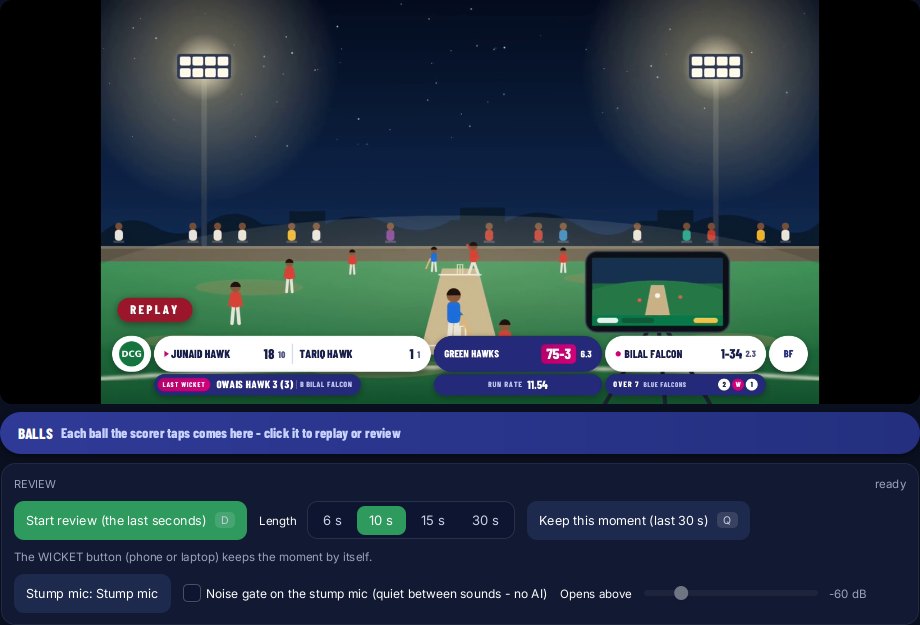
On Windows: wicket replay with a batter card, reviews with the Edge Meter (the stump mic's sound shown beside the replay), and a separate highlights editor
On Windows: the recording made so far is kept if the program crashes
A replay on air in the Windows studio (demo match; the picture is one of our illustrations, played as a test camera).
Hear the edge in a review
Put a mic at the stumps and use its sound when you show a replay, so you can listen for a touch of the bat while the picture plays.
In a review the live mics go quiet and only the chosen mic's sound of that ball plays, in step with the replay
In the Android phone app: an edge check draws that sound as a line, with a mark at the sharpest click
In the Windows laptop studio: the Edge Meter shows the stump mic's sound beside the replay, gold for a sharp bat tick and blue for a duller pad or body sound
In the Windows laptop studio: a clap test lines the stump mic up with each camera's picture, and two camera angles can sit side by side with the Edge Meter (the stump mic's sound) between them
A drawing for this page, not a screenshot: two camera angles with the stump mic's sound between them. Gold marks a sharp tick, blue a duller thud, the red line the moment on screen.
Tournaments, teams and records in one place
Set up your event, add teams and players, and let the draw move winners up as results come in. When the match ends, the scorecard is ready to share.
Tournaments, events, teams and players
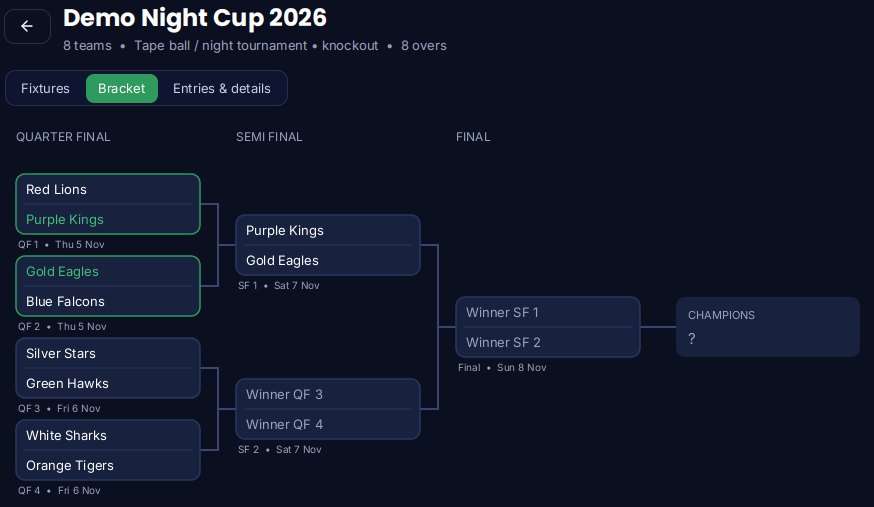
Knockout draws on the phone and the laptop studio
Records and player career records
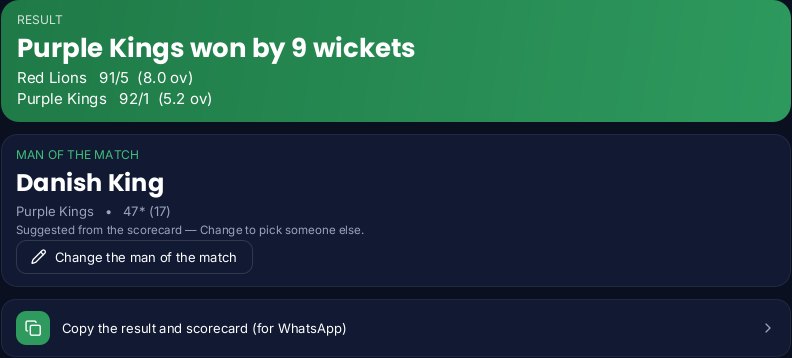
A suggested man of the match on the laptop studio
A knockout draw (demo teams).Match over: the result, a suggested man of the match and the scorecard to copy (demo match).
Swipe for moreScroll sideways for more
Match posters in a minute
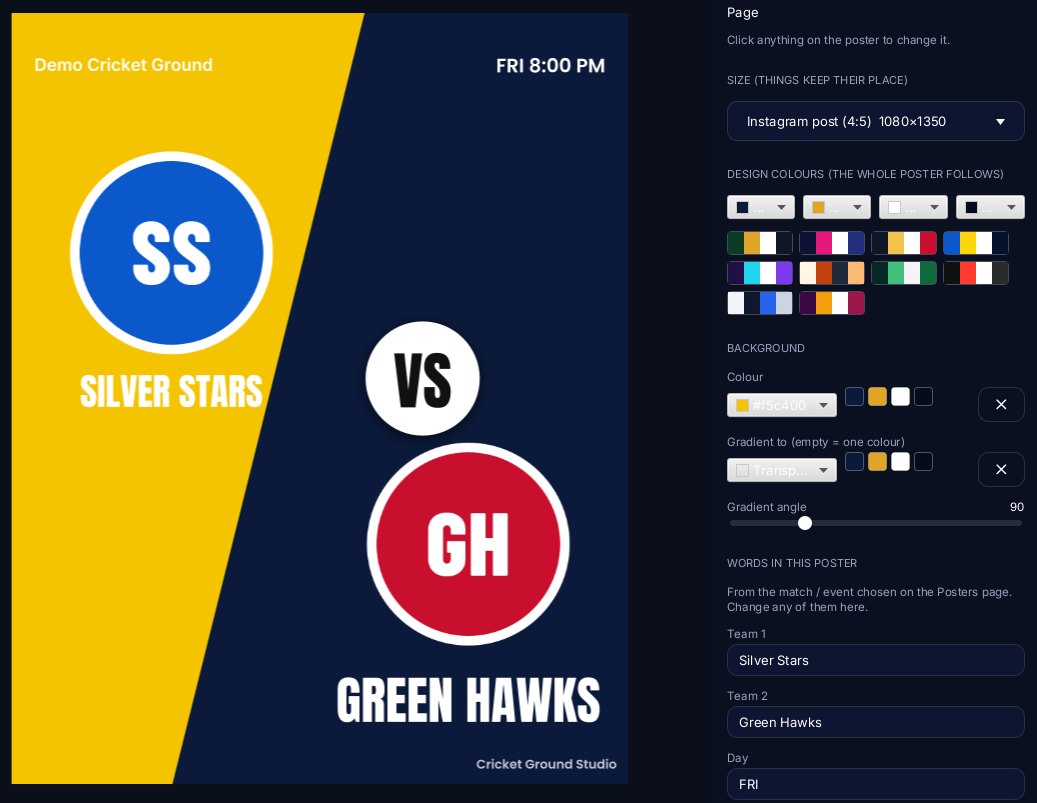
Pick a ready-made poster and the teams, date and ground fill in from your fixtures. Change any word, colour or logo, then send it to your WhatsApp groups.
Ready-made templates and a design editor
Export as an image or PDF
Photo editor with an on-device background remover (the photo never leaves the phone)
Posters for upcoming matches, results and more
A ready-made poster filled from the fixtures, open in the editor on the Windows studio (demo event).
A player card every player can share
Players fill in their own profile and get a Player ID made on the phone. They can share their card as a link or a QR code.
Player ID made on the phone. It stays the same while you keep the app's data (deleting your data or reinstalling gives a new ID)
Card shared as a link or QR code
The card never shows CNIC, phone number or date of birth
Under-13 profiles need a parent or guardian
JH
Junaid Hawk
Green Hawks · Batter
Player ID GS-DEMO-0001
Demo player card (a made-up player).
How the pieces fit together
Use one phone, or build a full studio. Everything talks over your ground's own Wi-Fi, a hotspot, Wi-Fi Direct or USB.
Your ground's Wi-Fi, hotspot, Wi-Fi Direct or USB
Camera phones
IP camera / DroidCam
Crowd scoreboard (any browser on the same Wi-Fi)
Umpire's phoneWindows laptop studio only
Commentator's tabletWindows laptop studio only
Scoring from a phone's browserWindows laptop studio only
Control phone or Windows laptop
internet, only when you go live
YouTube / Facebook / your RTMP server
Solid lines: the Android phone app and the Windows laptop studio. Dashed: Windows laptop studio only. The iPhone, iPad and Mac app is a quick scorer for now and does not connect cameras or screens.
Grow your setup
1
One phone on a tripod
Score, stream and record the whole match from a single Android phone.
Needs: Android phone app
2
Add more cameras
Turn spare phones into cameras, or add RTSP or ONVIF IP cameras and DroidCam. The control phone or laptop switches between them.
Needs: Android phone app or Windows laptop studio
3
Run a full control room
Move the control to a laptop: USB and HDMI cameras, a stump mic, and pages for the umpire, the commentator and scorers on their phones.
Needs: Windows laptop studio
Works at the ground without internet
Many grounds have a weak signal or none. The apps are made for that: the phones and the laptop talk to each other over your own local connection.
Works with no internet
Ball-by-ball scoring and the scorecard
Recording on the phone or the laptop
Replays and slow motion
Making posters and player cards
Camera phones and IP cameras over Wi-Fi, a hotspot, Wi-Fi Direct or USB
The crowd scoreboard on the ground's Wi-Fi
The Windows licence check, done on the laptop
Needs internet
Going live on YouTube, Facebook or your RTMP server
Sending posters, scorecards or player cards to WhatsApp or another app (that app needs internet)
Checking for a Windows update, only when you press Check
For going live, use mobile data, a hotspot or Wi-Fi. On a weak signal, pick 480p.
Bigger match? Run it from a laptop
The Windows laptop studio is a control room for a serious tournament. Switch between cameras, put cards on screen with one click, and give every person at the ground their own screen.
Umpire
A phone page showing the balls left in the over.
Commentator
A commentator screen on a second monitor or a tablet, opened by QR code.
Crowd
A big live scoreboard on any screen or browser on the ground's Wi-Fi.
Scorers
Score from a phone's browser. No app needed on that phone.
Stump mic
Ground sound from the stumps, lined up with the picture by a clap.
Crew
A walkie-talkie between the laptop and the crew's phones.
Needs Windows 10 or 11 (64-bit). A graphics chip with a video encoder is recommended. See System requirements below.
Made for the way local cricket is played
Night tournaments
Floodlit tape-ball and hard-ball events: one phone on a tripod, the live score on screen, and posters for every match day.
Clubs and leagues
Fixtures, teams and records kept together, knockout draws, and a scorecard ready the moment the match ends.
Schools and academies
Film practice matches from more than one angle, replay the moment in slow motion, and keep everything on your own device. Profiles for under-13 players need a parent or guardian.
No account. Your matches stay on your device.
Cricket Ground Studio has no sign-in and no cloud. In the Android phone app and the Windows studio, matches, players, stream keys and videos are kept on your phone or laptop and leave it only when you go live, share a file or send a player card yourself. The early iPhone and iPad app shows Google AdMob banners, so Google receives device and ad data there. The privacy policy explains this.
No account and no password to remember
Your own stream keys, kept on the device
No ads and no analytics in the Android phone app or the Windows studio
"Delete all my data" in Settings (Organizer) or Profile (Player) on the phone
Camera phones, IP cameras and the laptop talk over your own local network
Best for: One person running the whole match from a phone
Scoring, live streaming with the score on screen, camera phones, replays, posters and player cards. Android 7.0 or newer. No ads, no account, no in-app purchases.
Not on Google Play yet
Windows laptop studio
Test build
Best for: Tournaments that want a full control room
Multi-camera switching, stump mic, crash-safe recording, replays, highlights, posters, and pages for the umpire, commentator and crowd. Windows 10 or 11, 64-bit.
Installer coming soon
iPhone, iPad and Mac app
In development
Best for: Coming later
An early version with a quick scorer only. More screens are on the way.
Technical details
Editions of Cricket Ground Studio
Edition
Platforms
ID
Status
Notes
Android phone app
Android
pk.groundstudio.app
Test build
Native Java app, version 2.4.7, Android 7.0 or newer. No ads, no account, no in-app purchases.
Windows laptop studio
Windows
—
Test build
Kotlin/JavaFX desktop app, version 0.4.1. Offline licence key with a 14-day trial. Checks for updates only when you press Check for update.
iPhone, iPad and Mac app
iPhone, iPad, Mac
pk.groundstudio.cricketGroundStudio
In development
Early Flutter version for iOS/iPadOS 15 and macOS 12 or newer. Quick scorer, optional Pro in-app purchases through the App Store, and AdMob banner ads on iPhone and iPad only (never on the Mac, never for Pro users).
Android app (Flutter edition)
Android
pk.groundstudio.cricket_ground_studio
Planned
Android version built with Flutter. Not released yet.
Coming later
These are not in the apps yet. We will say so here when they arrive.
Ball tracking and LBW reviewNot yet available
More screens in the iPhone, iPad and Mac appNot yet available
Video guides on YouTubeNot yet available
Questions and answers
Do I need an account?
No. There is no sign-in. On the phone, the email you pick at the start stays on the phone and is not checked or sent anywhere.
Do I need internet at the ground?
Only to go live. Scoring, recording, replays, posters and camera phones all work without internet. For streaming, use mobile data, a hotspot or Wi-Fi. Pick 480p when the signal is weak.
Can I stream to YouTube and Facebook?
Yes. Paste your own YouTube or Facebook stream key in Settings, or type any rtmp:// or rtmps:// address. The video goes straight from the app to that service.
Can I use several phones as cameras?
Yes. Install the app on each spare phone and tap "Use this phone as a camera" on the opening screen. No sign-in is needed. Connect them over the same Wi-Fi, a hotspot, Wi-Fi Direct or USB. The camera phones do not need internet: they talk to the control phone or laptop over that local connection.
Which cameras work?
The phone's own camera, other phones running the app, RTSP or ONVIF IP cameras, and DroidCam. The Windows studio can also use USB and HDMI cameras.
Can spectators see the live score?
Yes. The crowd scoreboard opens in any browser on the ground's Wi-Fi, so a TV, laptop or phone at the ground can show the score. Nobody needs the app to watch it.
Does my data leave my phone?
In the Android phone app and the Windows studio, only when you send it: your live video goes to the service you chose, and files, scorecards or player cards go to whoever you share them with. Quezlo runs no server that receives your matches, players or stream keys. The player-card page is a static page hosted on Netlify. The early iPhone and iPad app shows Google AdMob banners, so Google receives device and ad data; see the privacy policy.
Where are my matches stored, and how do I delete them?
On your phone or laptop. On the phone, tap "Delete all my data" in Settings (Organizer) or on your Profile (Player). On Windows, delete the data folder. The privacy policy explains how.
The Windows studio uses a licence key for your ground, checked on the laptop with no internet needed. A new laptop gets a 14-day trial with every feature. After that the app keeps working, but live video and recordings carry a small "Unlicensed copy" mark.
What happens if the laptop crashes mid-match?
On the Windows laptop studio, the recording made so far is kept, so you do not lose the match video up to that moment.
Is ball tracking or LBW available?
Not yet. Ball tracking and LBW are coming later and are not in the current versions.
How much does it cost?
Plans will be announced soon.
What to bring on match day
For the phone app
An Android phone with Android 7.0 or newer
A tripod or a stand to hold it steady
Spare Android phones, if you want more camera angles
Mobile data, a hotspot or Wi-Fi, only if you go live
Your YouTube or Facebook stream key, pasted in Settings before the match
For the laptop studio
A laptop with Windows 10 or 11, 64-bit
At least 2 GB of free disk space to start a recording, and about 50 GB free to be safe
A graphics chip with a video encoder, if you have one (recommended, not required)
Your licence key, or the 14-day trial on a new laptop
Optional: a mic for the stumps, and USB or HDMI cameras